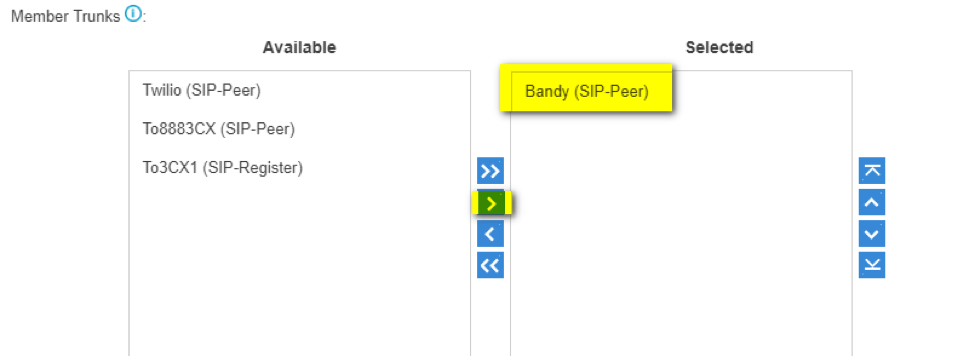
Creating Bandwidth SIP Trunk, Inbound, and Outbound Routes
Setting up a Bandwidth SIP Trunk
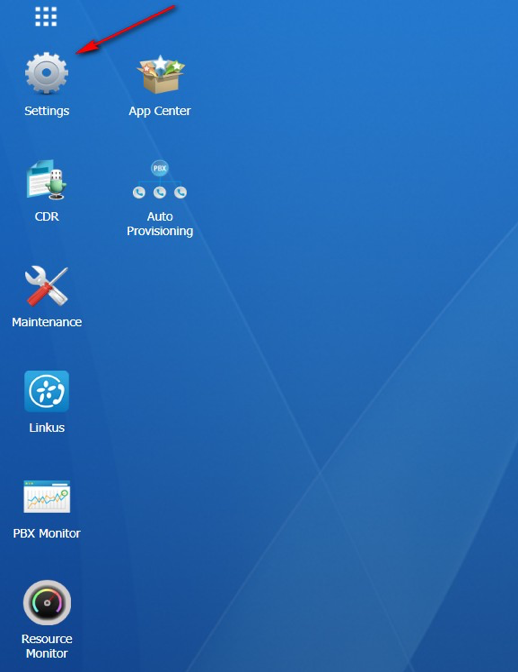
1) Click settings.
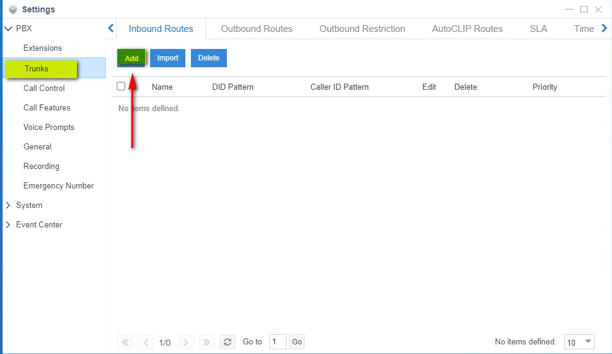
2) Navigate to “Trunks” then select “add”.
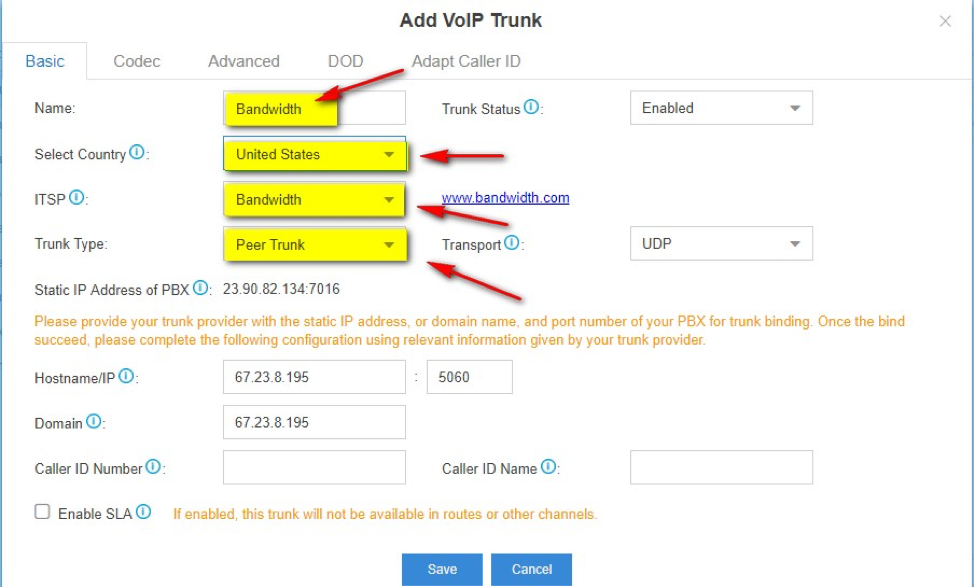
3) Fields
- Name = Bandwidth
- Country = United States
- ITSP = Bandwidth
- Trunk Type = Peer
All other fields will populate after saving and applying the changes.
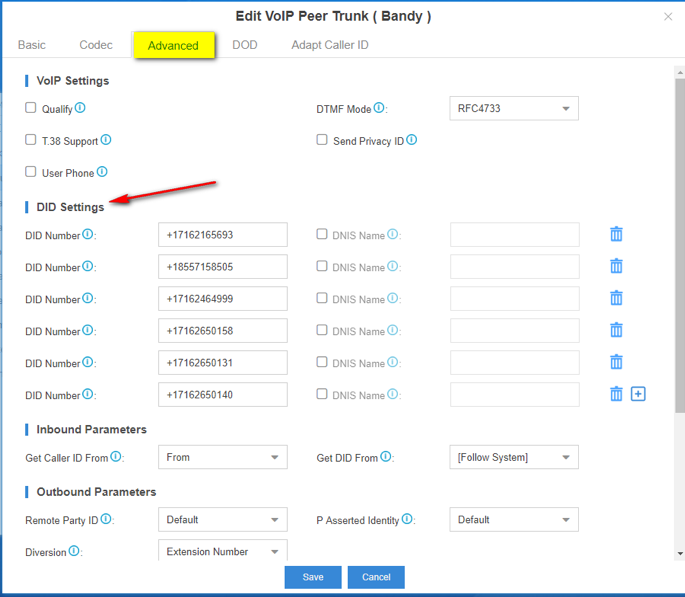
4) Under the Advanced Tab, you can add your DIDs.
Creating Inbound routes on a Yeastar PBX
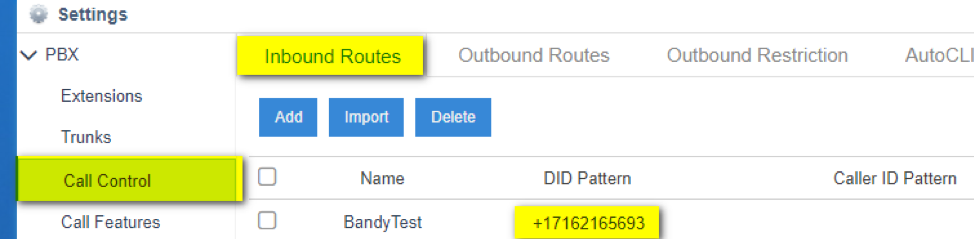
1) Navigate to Settings -> PBX -> Call Control -> Inbound routes.
Here you can define your DIDs. Note the +1 before each DID.
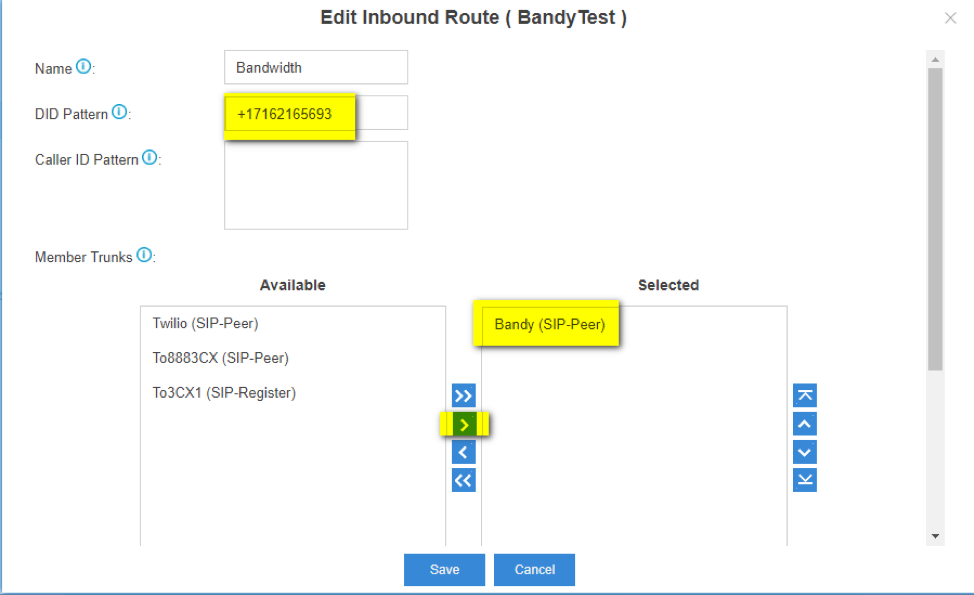
2) Double click on the DID to select the appropriate SIP Trunk, in this case, it would be Bandwidth. Now move it to the "Selected" side.
Creating Outbound routes on a Yeastar PBX
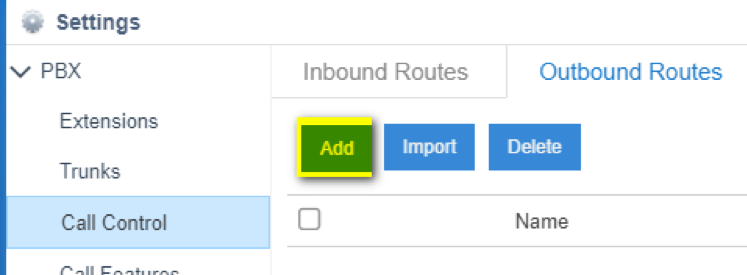
1) Naviagte to Settings -> PBX -> Call Control -> Outbound Routes
Click "Add"
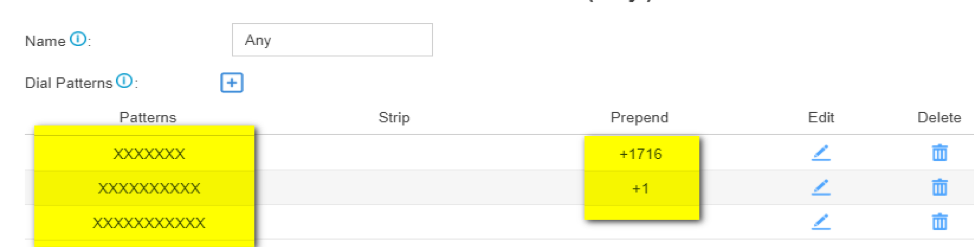
2) The dial pattern below is for 7, 10 and 11 digit dialing
- 7 digits = xxxxxxxx prepend = +1(local area code)
- 10 digits = xxxxxxxxxx prepend = +1
- 11 digit = xxxxxxxxxxx
3) Be sure to select Bandwidth as your "Selected Trunk"